
Step 1 — Install SABnzbd
Head to sabnzbd.org and pick the right installer:
- Windows: download the
.exeand run it — standard installer. - macOS: download the
.dmgand drag SABnzbd to your Applications folder. - Linux: install via your package manager (most distros ship it) or follow the docs for your distro.
- NAS: Synology and QNAP both have SABnzbd as a package in their respective app centres. Docker images are also available.
Step 2 — Open the web interface
SABnzbd doesn’t have a regular desktop window — it runs as a background service and you control it through your browser. After installation it usually opens automatically at http://localhost:8080. If not, open that URL manually. On a NAS, replace localhost with the NAS’s IP address.
Step 3 — Run the setup wizard
The first time you open SABnzbd, a 3-step Quick Setup wizard appears. Keep the defaults on the language & access pages (or change the UI language and turn on HTTPS if you want). On the Server step, fill in your XS News details using the values below.
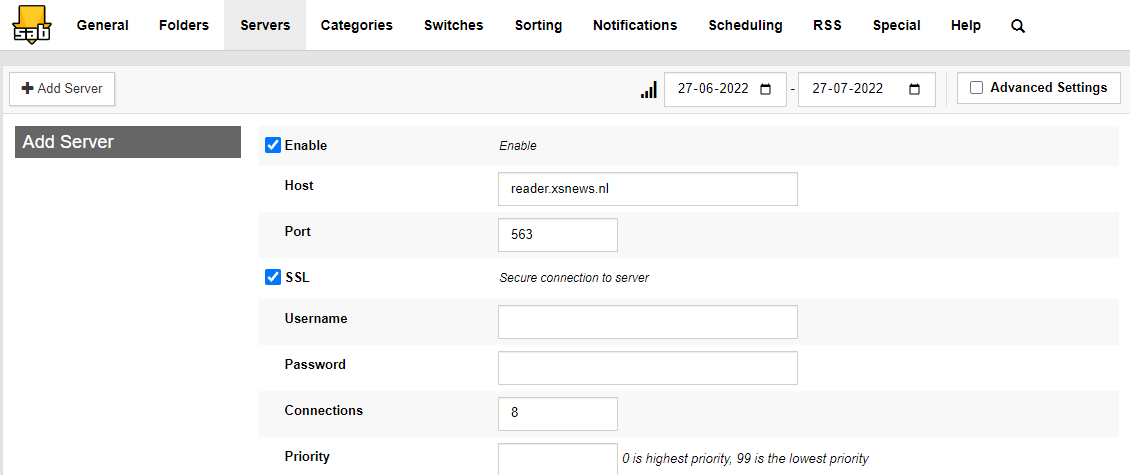
Step 4 — Test the server
Click Test Server. SABnzbd connects to reader.xsnews.nl using the credentials you entered — a green tick means everything works. Click Next and then Go to SABnzbd to finish.
Step 5 — (Optional) Set folders & categories
Open Config → Folders to choose where finished downloads land. Add categories under Config → Categories if you want SABnzbd to separate movies, music, software etc. automatically.
Step 6 — Start downloading
You’re ready. To download something, drag an .nzb file from your browser straight onto SABnzbd’s web interface, or use Add NZB to upload it. SABnzbd will fetch all articles in parallel, repair anything broken, unpack archives and drop the finished files in your download folder.
Troubleshooting
- "Authentication failed" — copy & paste username and password from the welcome e-mail; manual typing often goes wrong with similar-looking characters.
- Slow downloads — in Config → Servers raise the connection count toward your plan’s maximum.
- Cannot reach
http://localhost:8080— SABnzbd may be running on a different port. On Windows check the tray icon → right-click → "Open SABnzbd". - Web UI from another device — enable Config → General → Host =
0.0.0.0and set a username/password for the web UI.
Still stuck? Contact support →
